Choosing the best Android standalone Drawing Tablet That Feels Like Paper can make digital art more comfortable for artists who prefer the resistance of traditional pencil and paper. Smooth glass screens may allow a stylus to glide too easily, making precise lines and controlled shading more difficult for some users. However, a paper-like drawing experience depends on more than screen texture. Stylus design, pressure response, display quality, and personal drawing habits all influence the result. Understanding these factors helps artists compare different tablet types and select a device that suits their creative workflow and budget.
1. What Gives a Drawing Tablet a Paper-Like Feel?
Screen Texture and Surface Friction
Screen texture determines how much resistance the stylus encounters during movement. A smooth glass surface offers little friction, allowing the pen to glide quickly. A matte or textured surface creates more resistance, which can help artists control short strokes, curves, and detailed linework.
A Drawing Tablet That Feels Like Paper does not necessarily need a rough screen. Excessive friction can make drawing uncomfortable and accelerate stylus nib wear. The surface should create sufficient friction for accurate strokes while allowing the pen to move freely and comfortably.
Stylus Nib Material and Drawing Feedback
The stylus nib also affects the drawing experience. Hard plastic nibs generally glide more easily, while softer or specially textured nibs may create additional friction against compatible surfaces. Nib shape and hardness can influence how the pen feels during sketching, outlining, and shading.
Artists should consider the nib and screen as a combined system. A textured screen paired with a suitable nib may provide better control than changing either component alone. The sound produced by pen movement can also affect perceived realism, although quieter or rougher feedback does not automatically indicate greater drawing accuracy.
2. What to Consider When Choosing a Drawing Tablet That Feels Like Paper?
Textured Display or Paper-Like Screen Protector
Artists can choose between a built-in textured display and a paper-like screen protector to achieve more friction during drawing. A textured display offers a surface designed for stylus use, while a screen protector can modify the feel of a compatible device. However, both options may affect screen clarity and stylus nib wear, so artists should consider their drawing habits before making a choice.
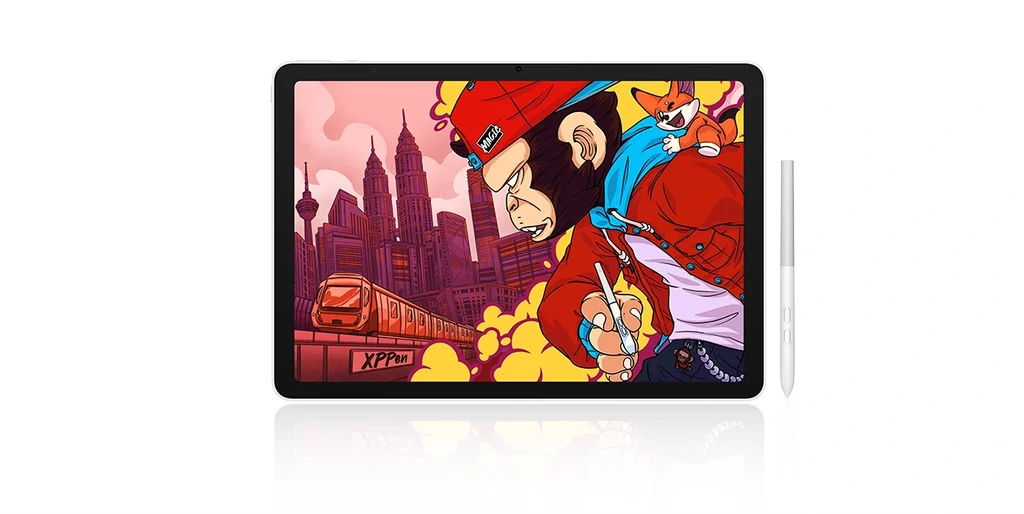
For artists looking for a Drawing Tablet That Feels Like Paper, the XPPen Magic Pro 13 standalone drawing Pad combines AG+AF nano-etched glass with an X4 Smart Chip Stylus to deliver a more tactile drawing experience. Its standalone Android design supports drawing on the go, while Drawing Display Mode allows users to connect it to a compatible PC for a flexible creative workflow.
| Key Feature | XPPen Magic Pro 13 |
| Display | 12.95-inch 3K (3096 × 2064) |
| Screen Surface | AG+AF nano-etched glass |
| Refresh Rate | Up to 120Hz |
| Stylus Pressure | 16,384 levels |
| Initial Activation Force | 2g |
Stylus Pressure Sensitivity and Tilt Support
Pressure sensitivity determines how the stylus translates hand pressure into changes in line weight or opacity. Many drawing tablets offer 4,096, 8,192, or more pressure levels, although actual performance depends on the hardware and software combination.
Tilt recognition allows compatible applications to change brush behavior according to the angle of the pen. This is useful for pencil-style shading and broad strokes. When evaluating a Drawing Tablet That Feels Like Paper, also check initial activation force, which affects whether light strokes register reliably. A high pressure-level count alone does not guarantee natural drawing.
Display Quality and Drawing Area
Screen size and resolution influence how comfortably artists can work on detailed illustrations. A 10-inch display may suit portable sketching, while a 13- to 16-inch screen provides more room for complex compositions. Larger displays can improve workspace comfort but usually take up more space in a bag.
Resolution matters as well. A higher pixel density can make fine lines and small interface elements appear sharper, especially when working close to the screen. Artists should also consider brightness, reflections, and color reproduction. The best Drawing Tablet That Feels Like Paper should balance surface friction with a clear display that supports the intended artwork.
Stylus Response Time and Tracking Accuracy
Response time affects how quickly a digital stroke appears after the stylus moves. Tracking accuracy determines whether the cursor follows the pen tip consistently across the screen. Delays or visible gaps can interrupt fast sketching and make precise curves harder to control.
Whenever possible, test the tablet with the drawing application you intend to use. Draw slow diagonal lines, quick curves, and small circles to check for wobbling, lag, or inconsistent tracking. These practical tests can reveal more about everyday performance than a single specification.
Pen Nib Wear and Replacement Costs
Textured surfaces can increase friction between the nib and display, potentially causing faster wear. The actual rate depends on the surface material, nib composition, pressure, and frequency of use.
Before purchasing a Drawing Tablet That Feels Like Paper, check the availability and price of replacement nibs. Artists who draw for several hours each day should also consider whether compatible nibs are easy to obtain and whether the manufacturer recommends particular nib materials for the screen.
3. Which Paper-Like Drawing Tablet Best Fits Your Workflow?
Screenless Drawing Tablets
Screenless tablets connect to a computer, allowing artists to draw on the tablet while viewing the result on a separate monitor. They are often a budget-friendly option for beginners and experienced artists who already own a suitable computer. Artists need time to adapt their hand-eye coordination because the area where they draw is separate from where the artwork appears. Although they do not provide direct screen contact, the tablet surface and stylus nib can still offer varying levels of resistance.
Pen Displays with Textured Surfaces
Pen displays allow artists to draw directly on the screen, making hand movements easier to coordinate with visible strokes. Models with matte or textured surfaces can provide additional friction for linework and shading. This category is worth considering when looking for a Drawing Tablet That Feels Like Paper for illustration, comics, or detailed digital painting. Buyers should compare screen texture, display quality, stylus performance, and computer compatibility before deciding.
Standalone Drawing Tablets
Standalone drawing tablets run compatible applications without requiring a separate computer during drawing. They are convenient for travel, quick sketches, and artists who prefer an all-in-one device. However, portability does not guarantee a paper-like surface. Check the actual screen finish, supported stylus features, battery life, and application compatibility. A device that feels comfortable for short sketches may not be equally suitable for extended professional work.
4. How to Choose a Drawing Tablet That Feels Like Paper for Your Needs
Match the Tablet to Your Drawing Style
Different creative tasks place different demands on a tablet:
- Line art and comics: Prioritize accurate tracking, controlled friction, and consistent light strokes.
- Digital painting: Look for responsive pressure sensitivity, tilt support, and compatible brush software.
- Handwriting and sketching: Consider surface comfort, portability, and ease of use.
- Professional illustration: Balance display accuracy, drawing area, software compatibility, and long-session comfort.
The best choice depends on how these features work together rather than on one specification alone.
Compare Comfort, Maintenance, and Total Cost
The purchase price is only part of the overall cost. Include replacement nibs, screen protectors, compatible accessories, and any required computer or software expenses. Also consider whether the tablet’s size and surface feel remain comfortable during extended sessions.
If possible, test a Drawing Tablet That Feels Like Paper in person. Try light strokes, firm lines, and repeated shading movements. This helps you judge whether the resistance supports your technique without creating unnecessary hand fatigue or excessive nib wear.
Conclusion
The best Drawing Tablet That Feels Like Paper is the one that combines suitable surface friction, responsive stylus performance, clear visuals, and comfortable handling. Textured displays, paper-like protectors, screenless tablets, pen displays, and standalone devices each offer different advantages. Compare these features against your drawing style, software requirements, budget, and portability needs. Rather than choosing by specifications alone, evaluate the complete drawing experience to find a tablet that supports precise, natural, and comfortable digital art.
